 Created : 02 Jul 2026
Last Update : 02 Jul 2026
Created : 02 Jul 2026
Last Update : 02 Jul 2026
OCR Character Confidence Scores
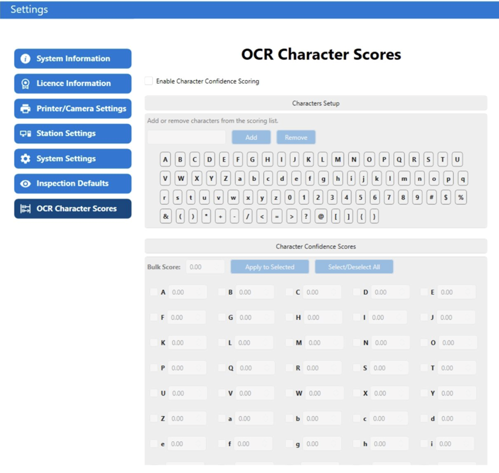
Learn how to enable OCR Character Scores - tips for maximising scores for your labelsPerceptor IoT reports the OCR character confidence score for every character, numeral, and special character. Pass/fail behaviour is optional and must be enabled separately.
Enabling OCR Character Scores
- Navigate to Settings → OCR Character Scores and enable the feature.
- Add or remove characters from your character set and set individual confidence score thresholds.
- Optionally define forbidden characters — for example, uppercase I and lowercase l, which appear identical in Arial.
Pass/Fail Behaviour
- With OCR Character Scores enabled, a label will fail if an individual character does not meet its required confidence score.
- Optionally, the pass/fail threshold can be applied across the whole text string rather than per character.
Tip
Take time to determine sensible confidence scores for your character set. Unique characters such as H or J typically achieve high scores, while visually similar characters such as 3/B/8 or 5/S/$ may score lower.