 Created : 20 Apr 2026
Last Update : 20 Apr 2026
Created : 20 Apr 2026
Last Update : 20 Apr 2026
Booklet Printing Media Sensor kit - installation steps
Guide to installing the Booklet Printing Media Sensor kit for Perceptor IoT inspection and verification with the Zebra ZT610 and ZT620 printersPart number: PT-PRT-ZT600-BKSENS
6082-T651 aluminium/anodising to AA15-BS1615

Tools required
You will need these tools to complete this procedure:
- Antistatic wrist strap and mat
- Torx-Head wrench set
Removing the electronics cover
- Caution: Turn off (O) the printer and disconnect it from the power source before performing the following procedure.
- Turn off (O) the printer and then disconnect the AC power cord and all data cables.
- Caution: While performing any tasks near an open printhead, remove all rings, watches, hanging necklaces, identification badges, or other metallic objects that could touch the printhead.
- Remove the media and ribbon.
- Caution: Observe proper electrostatic safety precautions when handling static-sensitive components such as circuit boards and printheads.
- Connect yourself to an antistatic device.
Removing the electronics cover mounting screw
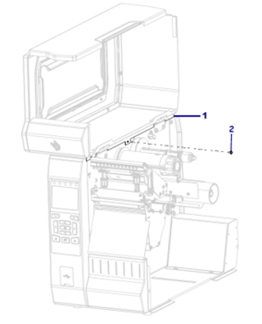
Key:
- Electronics cover
- Electronics cover mounting screw
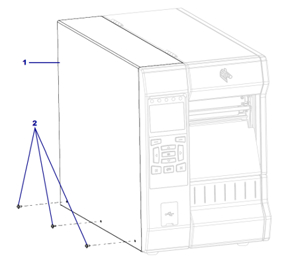
Key:
- Electronics cover
- Electronics cover mounting screws (3)
Lifting the electronics cover off the printer
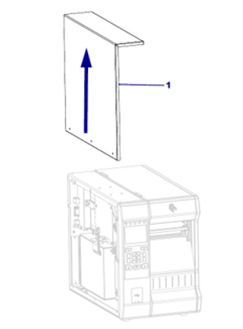
Key:
- Electronics cover
Removing the old media sensor
- Cation: Observe proper electrostatic safety precautions when handling static-sensitive components such as circuit boards and printheads.
- Connect yourself to an anti-static device.
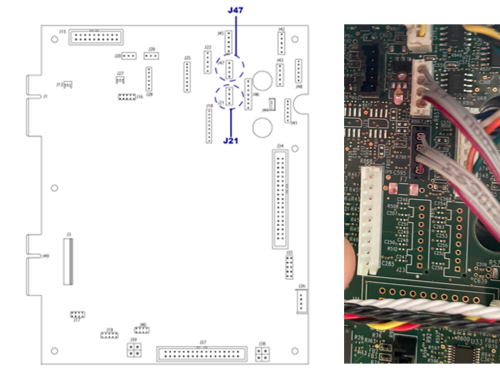
- See images below - disconnect the media sensor cable from J21 and J47 on the main logic board (MLB).
Connecting the new media sensor
- White connector bottom of media sensor to J47
- Black connector top of media sensor to J21
See images below for guidance.
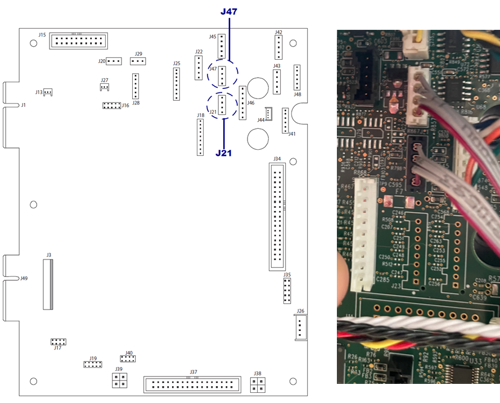
- Remove the old sensor
- Start installation of new sensor
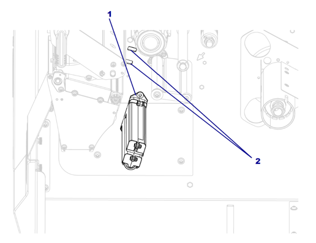
Key:
- Media sensor
- Access holes (2)
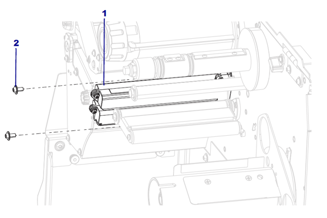
Key:
- Media sensor
- Mounting screws (2)
Reinstalling the electronics cover
See the image below – slide the electronics cover onto the printer.
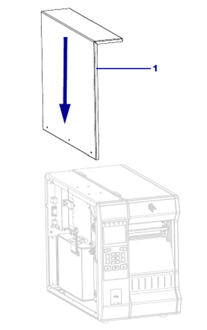
Key:
- Electronics cover
Adjusting the sensor position
The transmissive media sensor assembly consists of two parts:
- A light source
- A light sensor
The lower part of the media sensor is the light source and the upper part of the media sensor is the light sensor. The media passes between the two parts.
Adjust the position of the sensor only if the printer cannot detect the top of the labels. In this situation, the display shows the media loaded in the printer. For non-continuous media with a notch or hole, the sensor must be positioned directly at the notch or hole.
To adjust the transmissive media sensor position
- Remove the ribbon so you can clearly see the media path
- With media loaded, locate the green light that shines from the lower part of part of the media sensor.
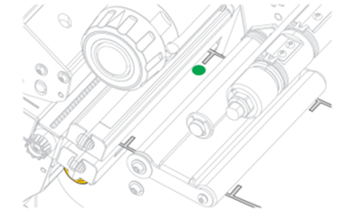
3. If necessary, turn the gold transmissive sensor adjustment wheel to move the sensor until it is positioned at a notch or hole in the media.
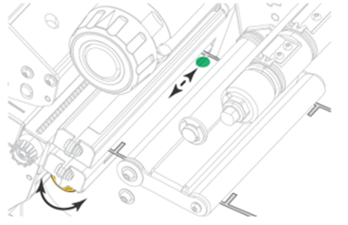
Turn on the printer and through menu ensure the following settings are correct:
- Head Close - Length
- Power Up - Calibration
Calibration steps
First time after installation, calibrate the printer with plain white single panel labels, with printhead closed power on printer and wait until the unit is calibrated.
- Open printhead and remove labels.
- Insert booklets, ensuring the calibration tab (green light as per above instructions) is locating correctly on booklet.
- Close printhead and hit Pause.
- Printer will dispense booklets until it calibrates length - if it doesn’t, ensure the green light is in the correct position.